Stopping background data
Three ways to do it, what each actually changes, and the one switch that silences every notification on your phone.
Background data is what an app spends while you are not using it. Syncing, refreshing, preloading, uploading analytics, fetching its own updates. You cannot see it happening and most apps never show you the figure.
If you already know which app is the problem, skip to the fix. If you do not, start with finding out which app is using your data — restricting things at random is how people break their phones.
1. Turn off background data for one app
This is the precise tool, and usually the right one.
- Settings → Network & internet → App data usage
- Tap the app
- Switch off Background data
The app still works normally when you open it. It simply stops spending while you are doing something else. For a game, a shopping app or a social app you check a few times a day, this costs you nothing you would notice.
2. Android’s own Data Saver
Settings → Network & internet → Data Saver switches background data off for everything at once, then lets you add exceptions.
It is a blunt instrument, and it has a specific weakness: it only applies to mobile data, and many people discover a month later that they left it on and an app they cared about has been quietly stale ever since. It also does nothing about an app that spends heavily in the foreground.
Useful as an emergency brake near the end of a bundle. Poor as a permanent setting.
3. Restrict the app from the network entirely
Turning off background data stops the app acting on its own. It does not stop it spending when you open it. If an app is simply expensive and you want it quiet until you are on Wi-Fi, you need something that blocks it by network rather than by state.
Android has no built-in per-app, per-network switch. That is the gap tools like ours fill, and it is worth being clear that it is the only part of this page you need software for.
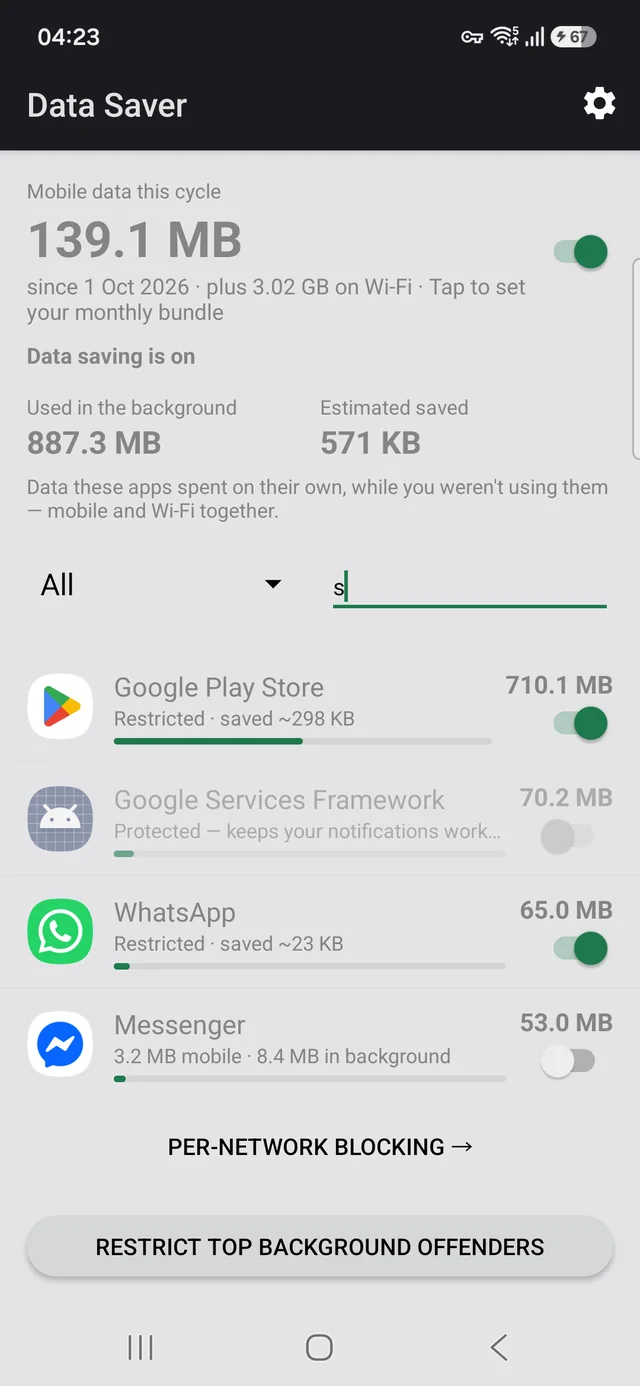
Do not restrict Google Play Services, your dialler, or your messaging app.
Android does not deliver notifications over each app’s own connection. They arrive through Google Play Services. Restrict that and every notification on the phone stops — messages, mail, calls, two-factor codes — and because the apps themselves still open fine, almost nobody connects the symptom to the cause.
This is the single most common way people break a phone while trying to save data.
What about force-stopping or uninstalling?
Force-stopping is temporary; Android restarts most apps within minutes. Disabling an app you cannot uninstall does work, but it is a heavier action than the data problem usually justifies, and some system apps will not tolerate it.
If an app is genuinely spending gigabytes in the background and you never use it, uninstalling is the honest answer and no tool can beat it.
Related
- Samsung Max was discontinued — what to clear off your phone, and which parts of it still need replacing
- Block an app on mobile data but keep it on Wi-Fi — the per-network switch Android never shipped
- Why the Play Store eats your mobile data — usually the single biggest offender, and a one-line fix
Doing this without the hunting
Everything above is possible with the settings already on your phone. It is just spread across several screens, one app at a time, with no ranking to tell you where to start.
Data Saver puts the usage figures and the restriction switch on the same row, works per network so an app can be blocked on mobile data and left alone on Wi-Fi, and marks the components that carry your notifications as protected so the mistake above is not available to you.
It has no INTERNET permission. The permission is absent
from the manifest, so Android will not let it open a network connection at all. No
accounts, no analytics, no servers, no ads. The source is public, so you can check that
rather than believe it.
Free, no ads, works offline. Requires Android 7.0 or later.